Internet Explorer 9 and 10 (Windows) - Clearing Saved Passwords and Form Data

This document explains how to clear the saved passwords and form data in Internet Explorer 9 and 10.
  1. Select Tools > Safety > Delete browsing history....

    In the top right of the Internet Explorer tab, click the gear icon, the fourth option down, safety, and then the first option in the new dropdown.

  2. Make sure to uncheck Preserve Favorites website data, and check both Form Data and Saved Passwords; then click Delete.
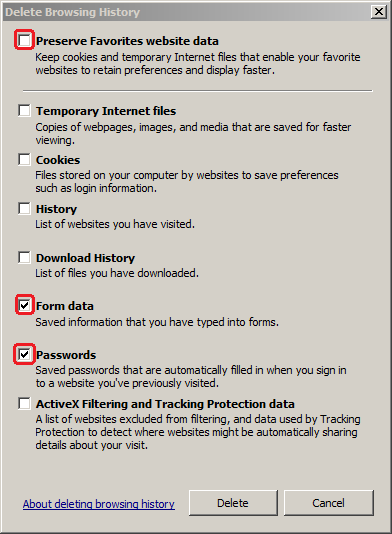
    Uncheck the first option to not preserve the data from favorite websites, then check the 5th and 6th to save passwords and form data.

  3. You will get a confirmation at the bottom of the window once it has successfully cleared your saved passwords and form data.

    Confirmation states Internet Explorer has finished deleting the selected browsing history.


Keywords:
internet explorer 9 ie ie9 clear clearing remove removing password passwords form data reset ie10 10 autofill 
Doc ID:
26484
Owned by:
Help Desk KB Team in DoIT Help Desk
Created:
2012-09-18
Updated:
2026-10-24
Sites:
DoIT Help Desk, University of Illinois System