
Cornerstone Performance - Goals - Employee View
Use this job aid to learn how to:
- Access the Goals Menu
- Create and Maintain Goals
- If you have any questions, please contact ihr-hrais@illinois.edu.
How to Access the Cornerstone System:
Use this link to access your goals in Cornerstone:
- Open internet browser and go to Cornerstone Goals Dashboard
- Log in to Cornerstone using your net ID and password.
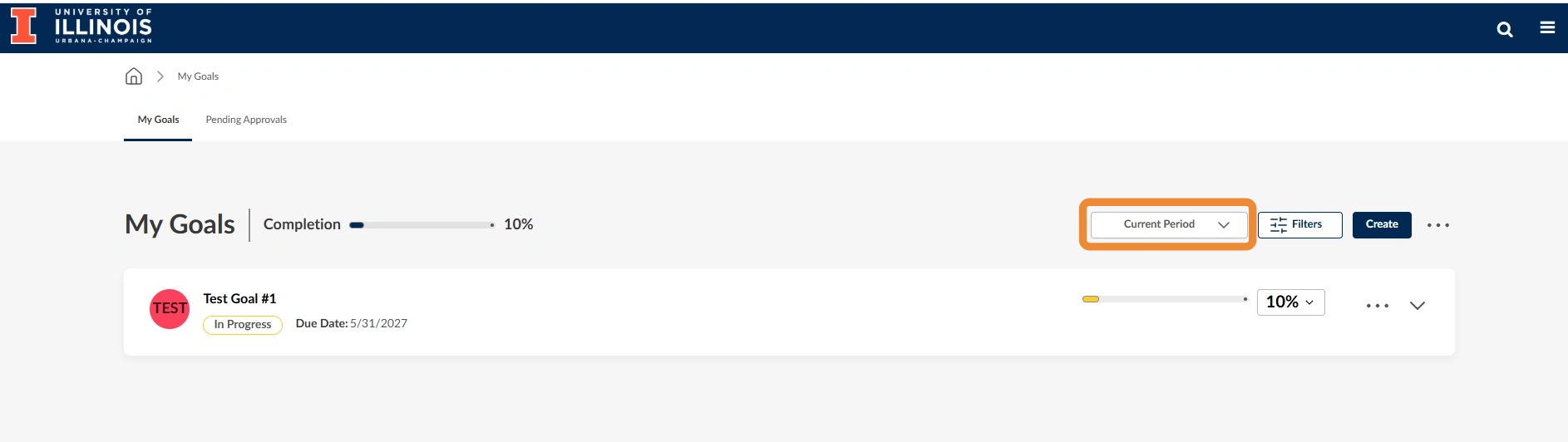
On this landing page, you will see all your goals for the current period. If you have previously entered goals, they will appear below. To see goals from a prior review period, you can adjust the date range under the "Current Period" dropdown list.
To Create a Goal:
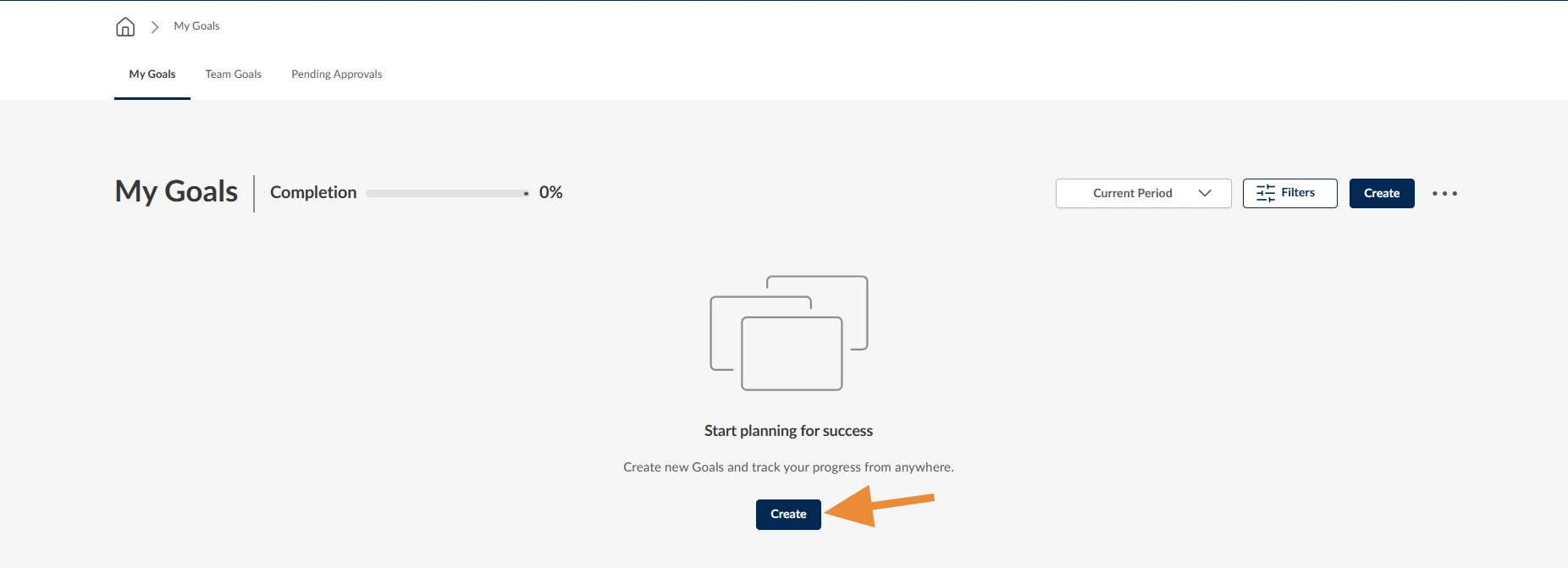
- Click "Create"
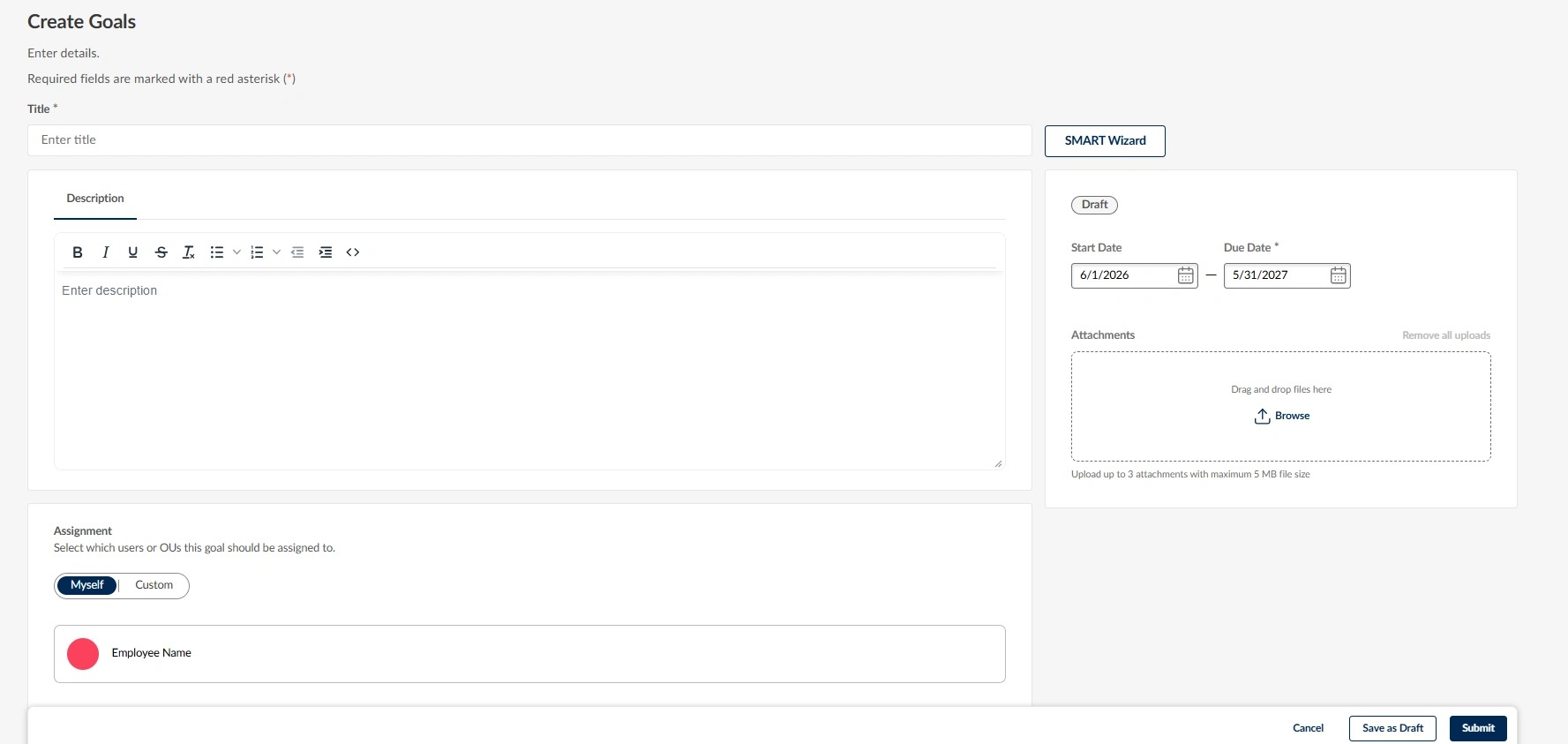
- Enter the title of your goal
- Enter a description for your goal
- The “Current Period” for goals typically runs from July 1 to May 31.
- Please carefully consider whether or not you alter the date ranges for newly created goals as adjustments may impact if and how your goals appear on your annual performance review later
- Attach documents if you have them
- Assignment:
- Please see the Team Goal Creation job aid to learn more about how to assign team goals.
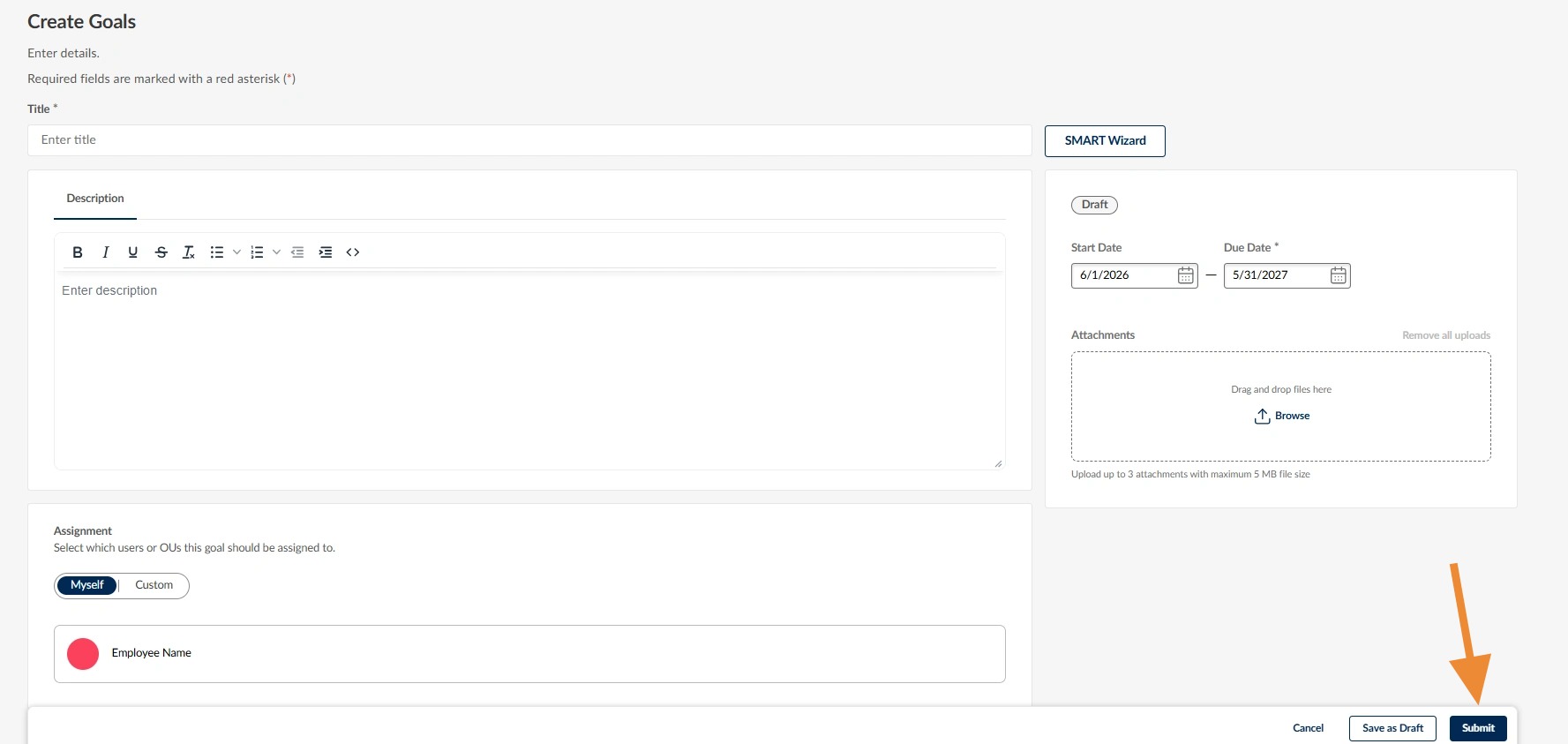
- The “Save as Draft” button will allow you to save the goal in your list prior to submitting if you want to make any changes to it prior to submission. Only you as the employee will see the DRAFT goal until you hit submit.
- Press cancel to return to the previous screen without saving

- The "Submit" button will save the goal and, if applicable, assign the goal to any selected team members and subordinates. In addition, submitted goals will appear on the annual performance review form unless canceled.
Access Goals - On This Page You Can:
Download your goals to a PDF document.
- Click the three dots in the upper right-hand corner.
- Click on "Download All"
- Then click on .pdf

View the Details of your goal by selecting the three dots at the end of the goal.
- The downward arrow will expand the details of the goal as well if you select that.

Please note that the Cornerstone platform will log any edits or updates you make to your goals in the “View History” drop down.

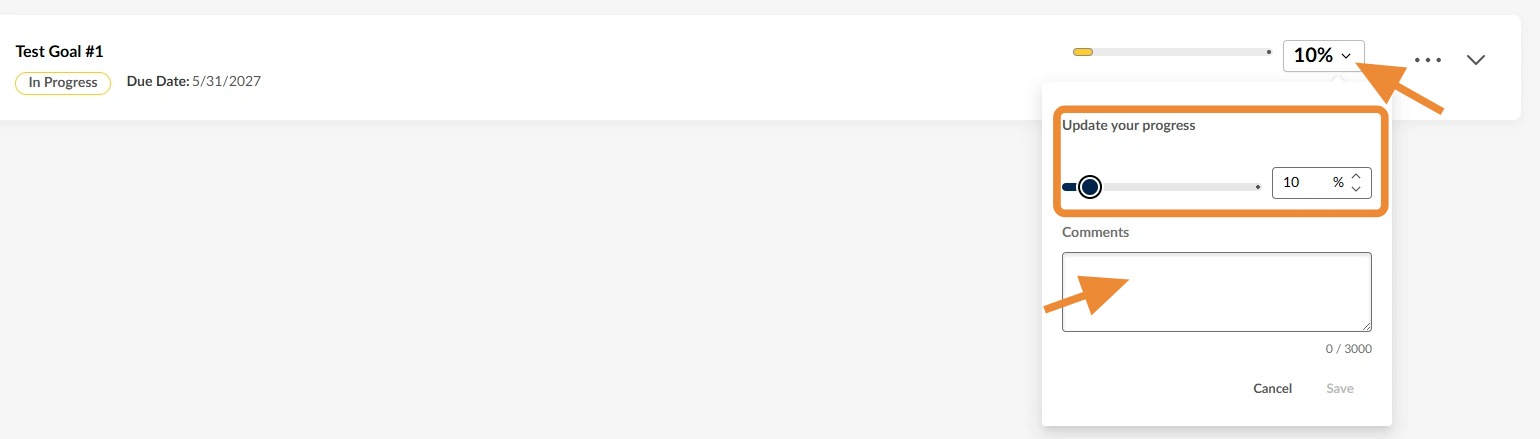
Record progress on the goal by clicking on the percentage dropdown next to your goal and sliding the bar or adjusting the percentage amount. You can also leave comments here.
Please Note: You and your supervisor will have access to your submitted goals throughout the performance period. If your supervisor makes edits or comments to any of your goals, you will immediately receive an email.