
Cornerstone Performance - Team Goal Creation
.Use this job aid to learn how to:
- Access the Goals Menu
- Create Team Goals
If you have any questions, please contact ihr-hrais@illinois.edu.
Use this link to access your goals in Cornerstone:
- Open internet browser and go to Cornerstone.
- Log in to Cornerstone using your net ID and password.
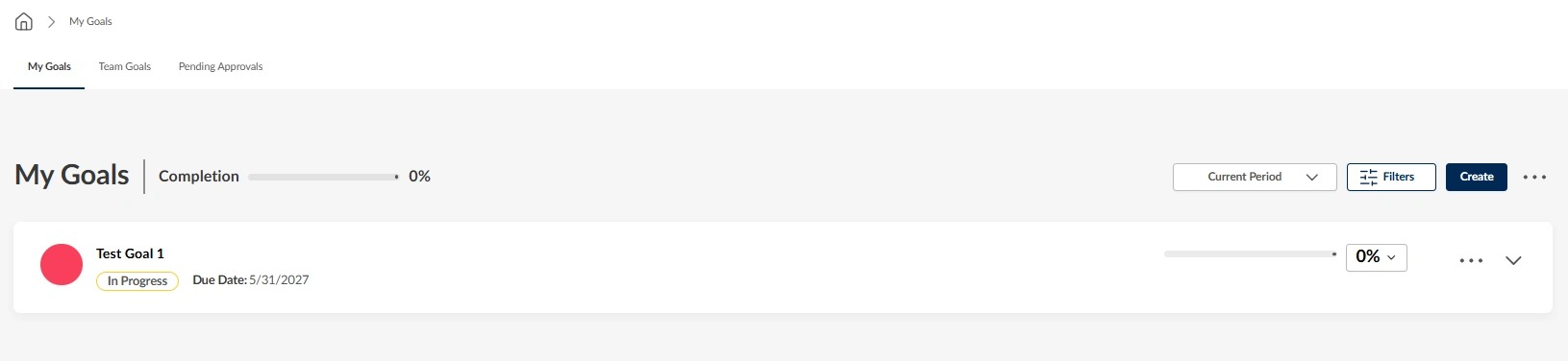
On this landing page, you will see all your goals for the current period.
- If you have previously entered goals, they will appear below.
- To see goals from a prior review period, you can adjust the date range.
On this page you can:
- Create new goals.
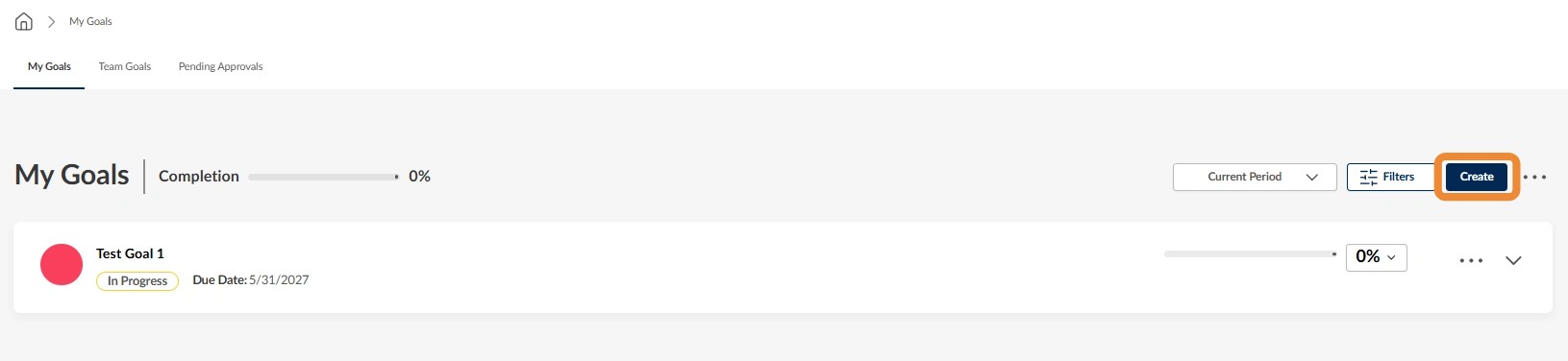
Download your goals to a PDF document.

View the details of your goal by selecting the downward facing arrow.

Please note that the Cornerstone platform will log any edits or updates you make to your goals in the “View History” drop down.

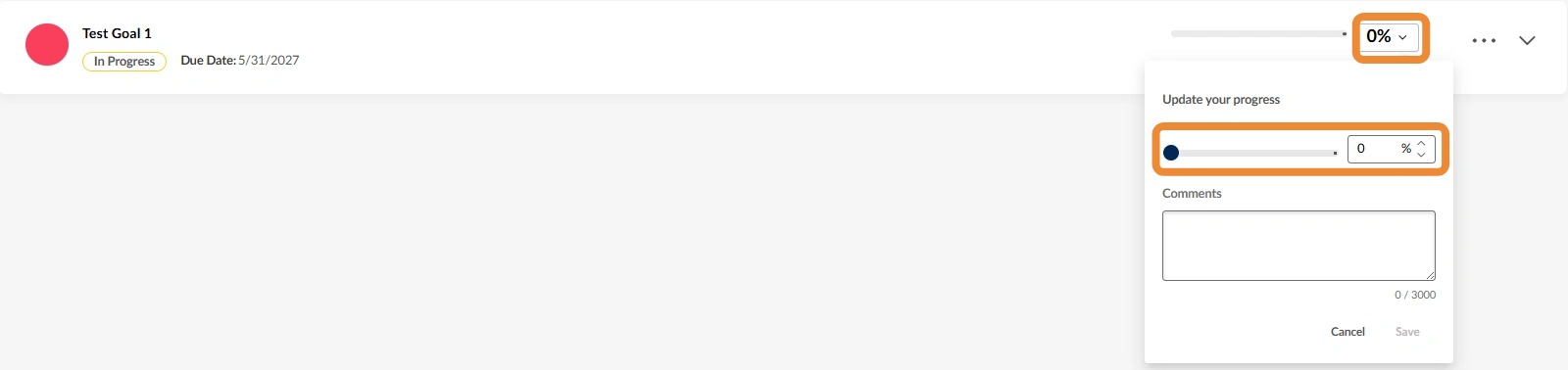
Record progress on the goal by clicking on the percentage. You can then slide the bar or select a percentage in the dropdown.
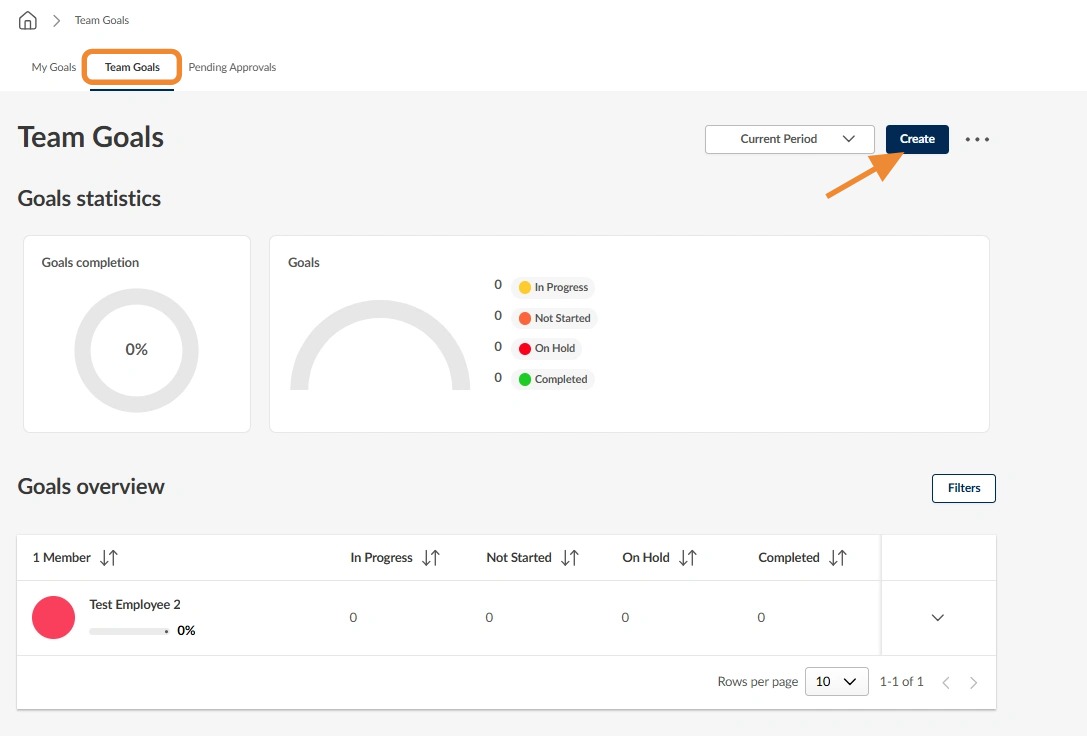
For Team Goal Creation, select "Team Goals" in the top header.
- To create a new team goal, click "Create".
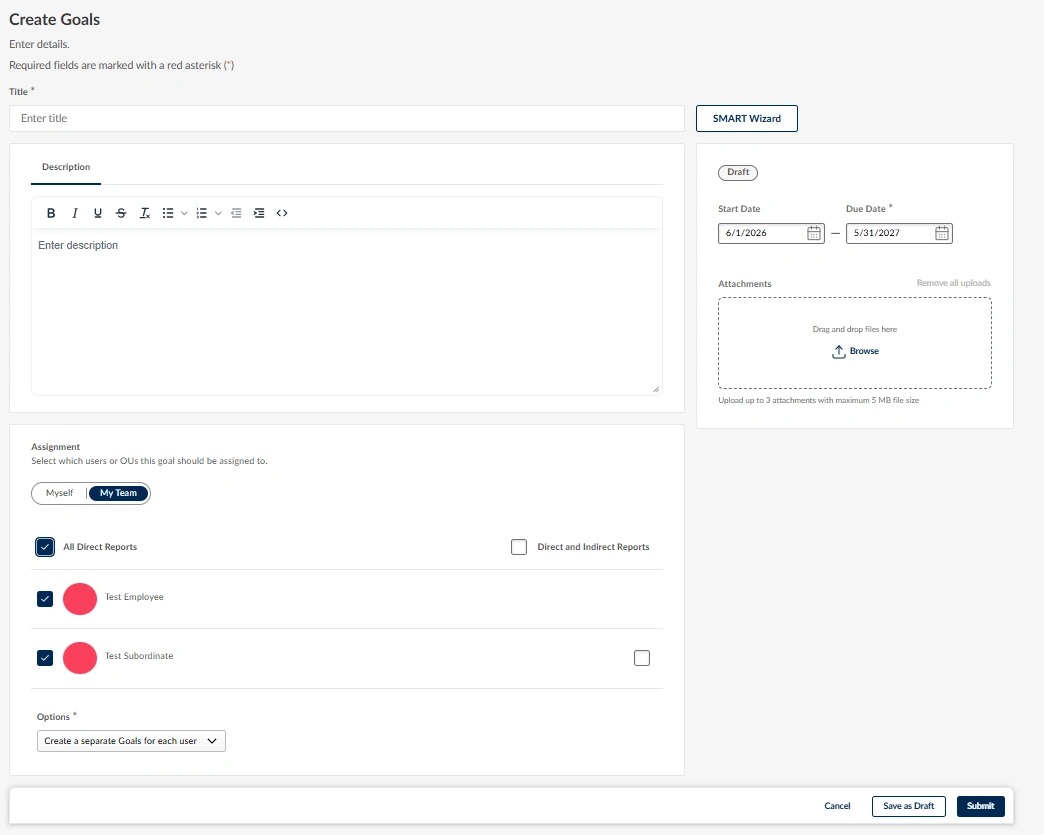
To create a goal:
- Enter the title of your goal
- Enter a description for your goal
- The “Current Period” for goals typically runs from July 1 to May 31.
- Please carefully consider whether or not you alter the date ranges for newly created goals as adjustments may impact if and how your goals appear on your annual performance review later
- Attach documents if you have them
- Assignment:
- Select whether you are assigning this goal for yourself or for your team.
- Please Note: When assigning to your team, you also have the option of assigning the goal to yourself.
- If you are assigning the goal to members of your team, select the checkbox next to each person’s name.
- Press the submit button (press cancel to return to the previous screen without saving)
- The “Save as Draft” button will allow you to save the goal in your list prior to submitting if you want to make any changes to it prior to submission. Only you as the employee will see the DRAFT goal until you hit submit.
Press the submit button (press cancel to return to the previous screen without saving)
- The “Save as Draft” button will allow you to save the goal in your list prior to submitting if you want to make any changes to it prior to submission. Only you as the employee will see the DRAFT goal until you hit submit.

The “Submit” button will save the goal and submit it to your supervisor for review. It will now be visible to both you as the employee and your supervisor.
Please Note: You and your supervisor will have access to your submitted goals throughout the performance period. If your supervisor makes edits or comments to any of your goals, you will immediately receive an email.