
Cornerstone Performance - Midyear Review Guide
Regular feedback is a critical component of employee success. It creates a continuous cycle of clarity, growth, and engagement rather than limiting performance conversations to annual reviews. While these reviews are optional, it provides an opportunity for supervisors to check-in with employees on their performance goals, share feedback, and acknowledge progress. If goals need to be adjusted, this review is the time to do so before annual reviews in the summer.
Framing the Discussion:
Below are some questions that the employee and supervisor might consider before the mid-year review or ask in your mid-year review to guide the conversation.
For Supervisors
Frame the discussion with open-ended questions:
- How do you feel about your progress toward your annual goals so far?
- Which goals are on track, and which need more attention?
- What obstacles have you encountered, and how can I help remove them?
- Are there any goals that need to be adjusted based on changing priorities?
- What support or resources would help you succeed in the next six months?
For Employees
Encourage reflection and proactive input:
- What accomplishments are you most proud of since the start of the year?
- Where do you see opportunities to improve or accelerate progress?
- Do you need clarification on any expectations or success measures?
- Are there skills or development opportunities that you’d like to pursue?
- How can I (or the team) better support your work?
How to Access the Cornerstone System:
Use this link to access your goals in Cornerstone:
- Visit Cornerstone
- Log in to Cornerstone using your NetID and password.
Access the Performance List and Click Goals:
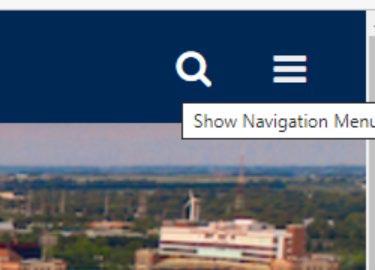
From any page in Cornerstone, access the main menu in the upper right corner of the page and choose Home, Universal Profile.
- Select the main menu:
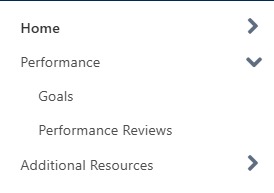
Select Performance, then Goals:
Review Goals:
There are several ways for employees to view goals in Cornerstone. Supervisors should reference Goals-Supervisor View for instructions on accessing employee goals.
Option 1 - Download a PDF of all goals:
From the My Goals page, click on the three dots in the upper right-hand corner. Select Download All - .pdf.
- This option may be helpful to print for the midyear review discussion, so you have all the goal details visible at the same time.
- If you utilize this version, comments noting your discussion still need to be added in Cornerstone for each goal.

Option 2 - Access goals individually in Cornerstone:
Access Full Details
- From the My Goals page, click the down arrow at the far right of the goal you wish to view.

Click Edit.
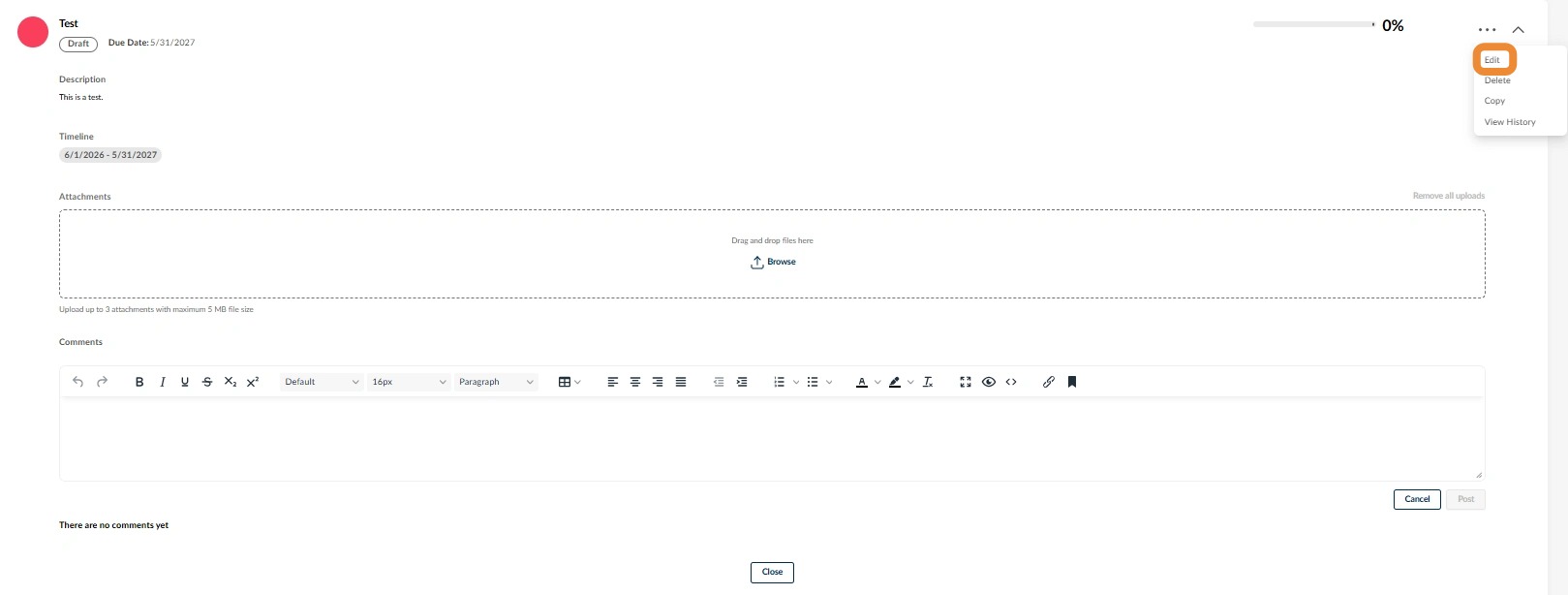
You will see the details for the goal.
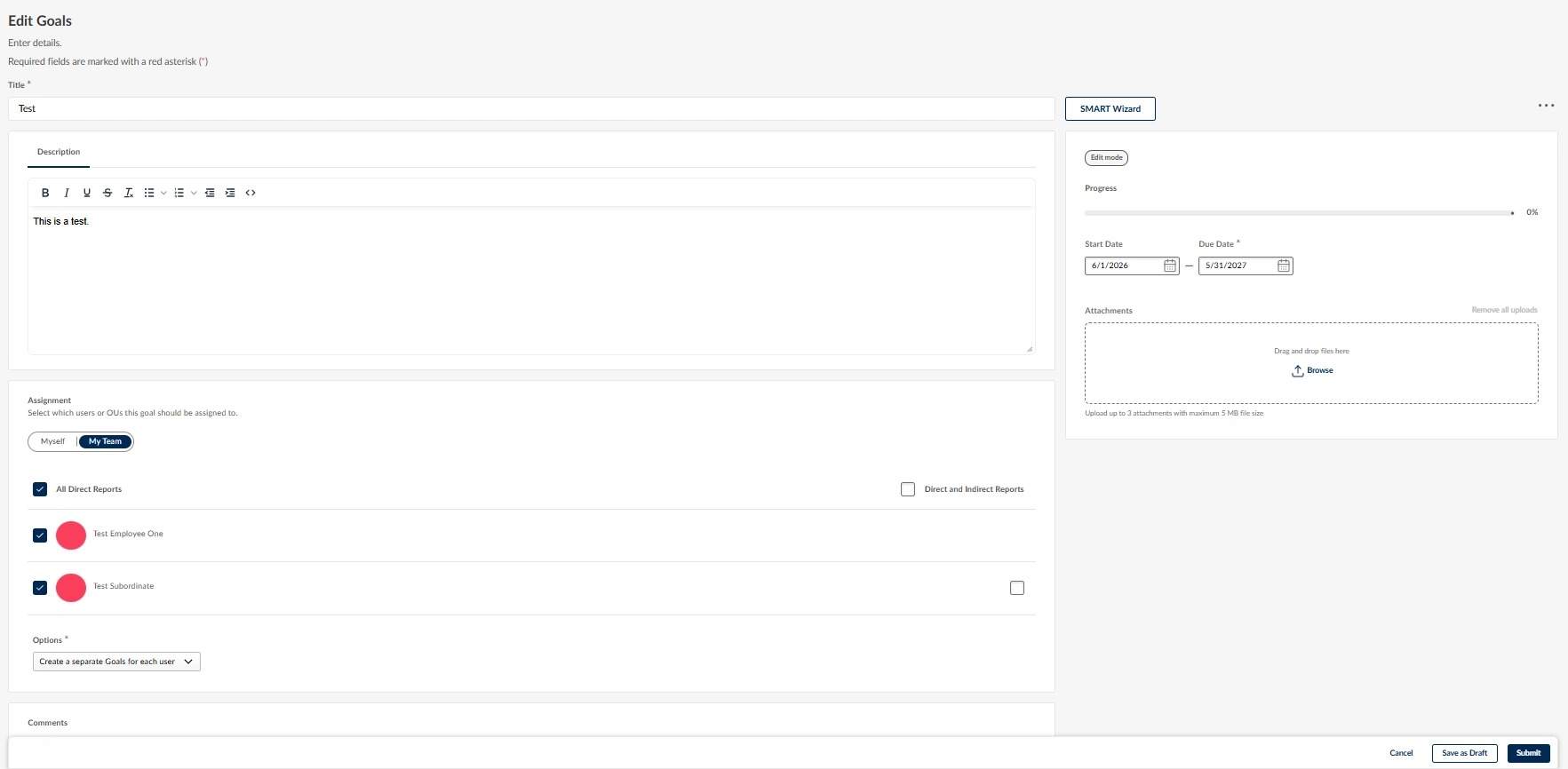
Quick Access:
From the My Goals page, click the arrow pointing down at the far right of the goal you wish to view.

A condensed view of the goal details will display.
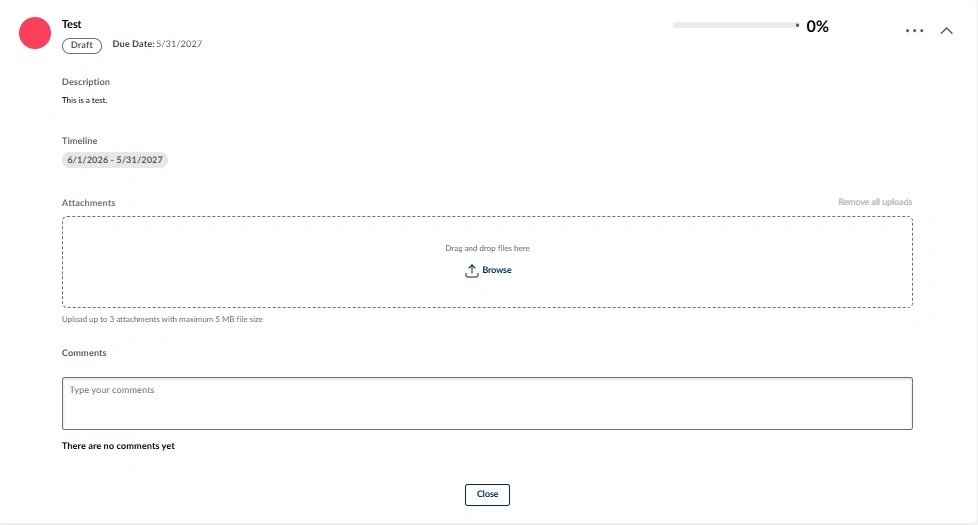
Enter Comments:
Click anywhere in the Comments box towards the bottom of the page to add comments.

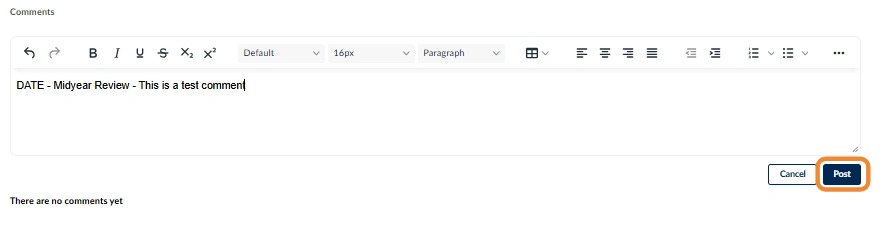
In the text box, enter the date and “Midyear Review.”
- Then, enter comments reflecting the discussion with your supervisor and detailing action items.
- When finished, click Post in the lower, right-hand corner.
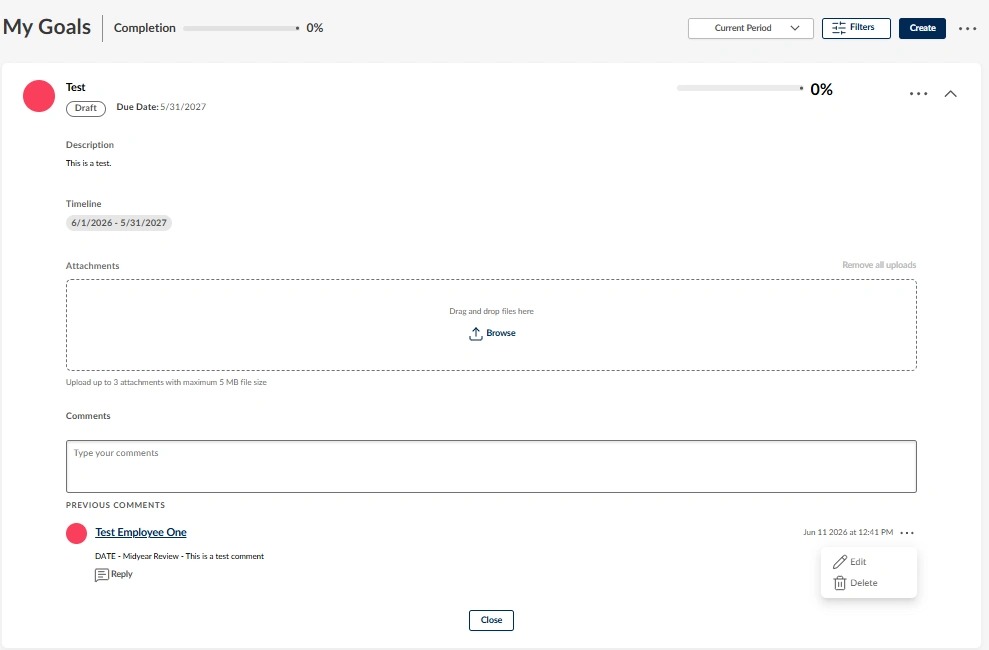
Once added the comment will show at the bottom of the page for the goal you are viewing.
- Each comment includes the name of the person who made it.
- If you wish to Edit or Delete a comment, you can click the three dots to the far right of the comment.
- Click Close when you are finished adding comments to the goal.
- This will save the comments with that goal, which will remain with the goal for future reference.
Repeat these steps for each goal.
Once you and your supervisor have added comments for all goals, the midyear review is complete. There is nothing additional to submit. The comments will remain with your goals so they can be referenced at your annual review.