
Cornerstone Performance - Annual Review - Employee
How to Access the Cornerstone System:
Open internet browser and go to http://go.illinois.edu/cornerstone
- Log in to Cornerstone using your net ID and password.
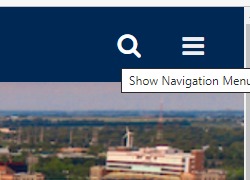
- Click on the menu (three horizontal lines) and navigate to the evaluation page.
- See the screenshot below under “Access the Scheduled Task List” heading.
Cornerstone Performance - Annual Review - Employee:
Use this job aid to learn how to:
- Access the Scheduled Tasks List
- Complete Self-Review
- Acknowledge the Annual Review Form
- Access the Completed Annual Review
If you have any questions, please contact ihr-hrais@illinois.edu.
Access the Scheduled Task List:
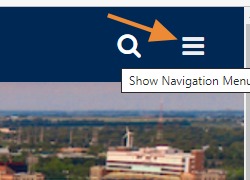
From any page in Cornerstone, access the main menu in the upper right corner of the page and choose Home, Scheduled Tasks.
- Select the menu:
Select Home, Scheduled Tasks:
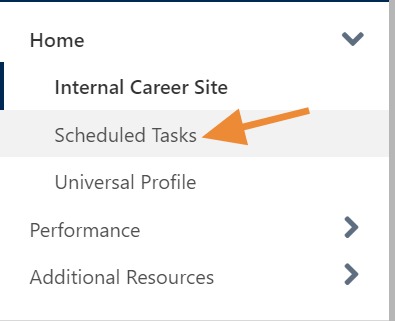
On the Scheduled Tasks page, choose the Annual Review task that has been assigned.

Complete Self-Review:
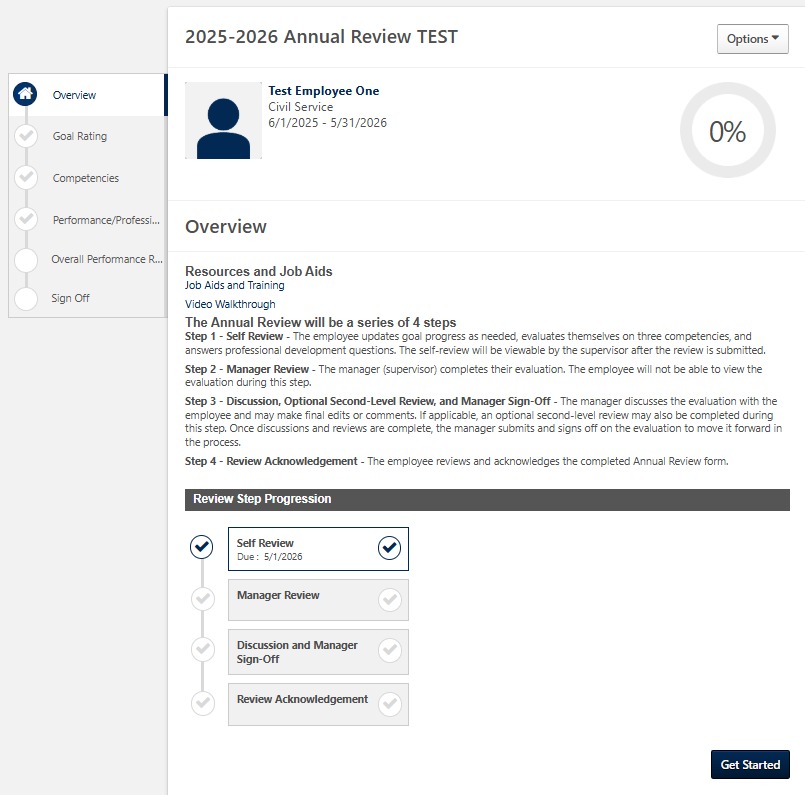
Once you pull up the form, there is an explanation of the 4 steps that the Annual Review will go through.
- To begin the self-review, press the Get Started button at the bottom of the page.
If you have entered goals for this reporting period, this page will allow you to update your goals progress as needed and enter comments.
- If you have not entered any goals, this page will be blank.
- To update the goal’s progress, select the down arrow in the upper right side of the goal and choose Manage Goals.
- If any comments were entered when creating the goal or any attachments added, you can view those by choosing Goals: Comments or Goals: Attachments.
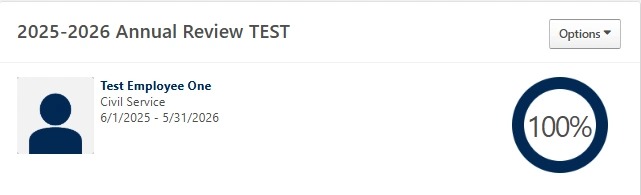
Move the slider bar to indicate how much progress you accomplished on the goal.
- The down arrow at the end of the bar will show you the history of the goal.
- You can add attachments or comments here if desired, but your supervisor will not see the comments on this page, so it is better to list the Comments on the Main Goal Rating Page. Press Done when finished.
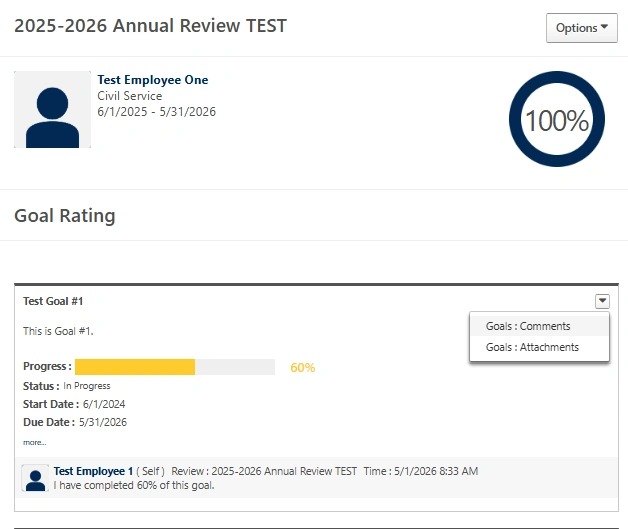
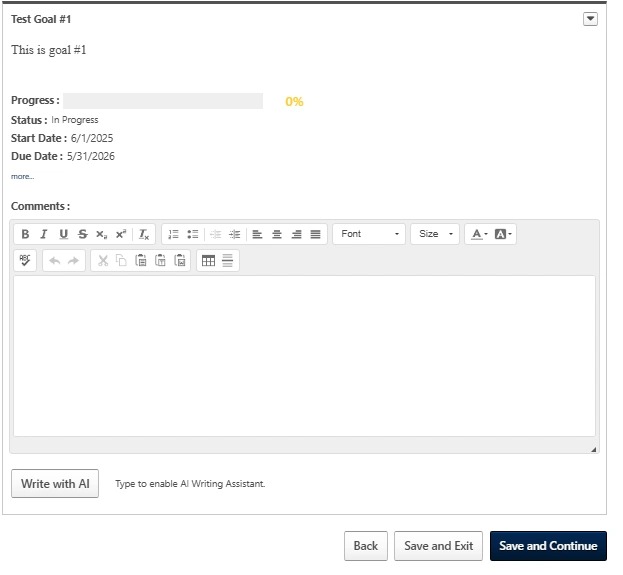
Update each goal as desired.
- Once all your goals are updated, press Save and Continue.
- If you would like to save your changes and come back later to finish, you can choose Save and Exit.
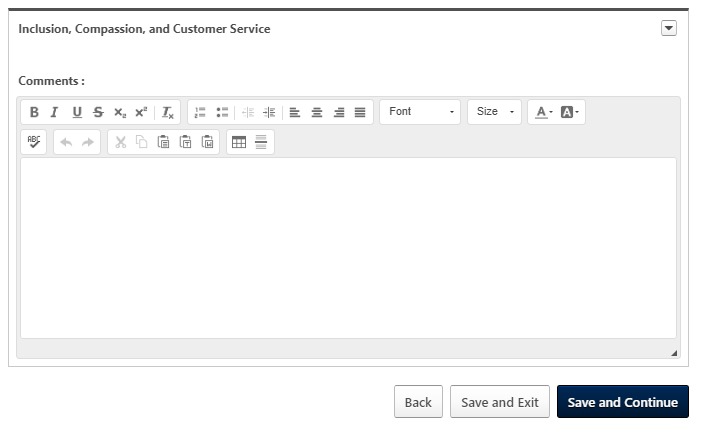
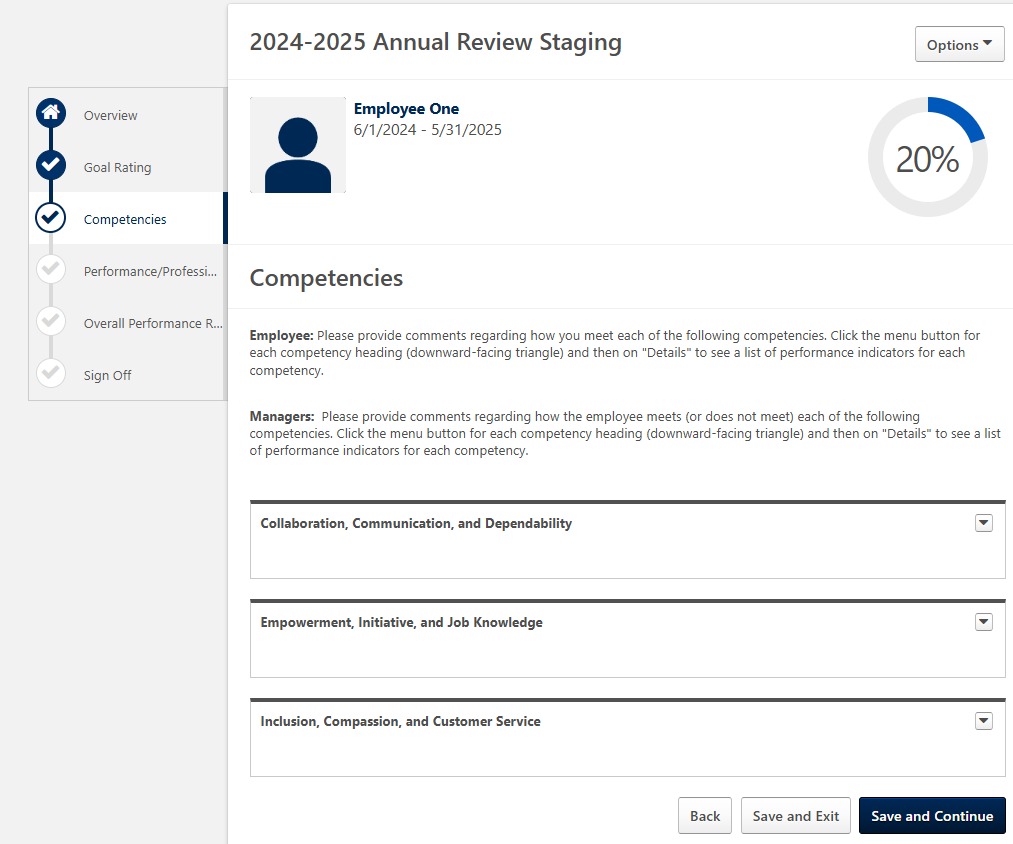
Please provide comments regarding how you meet each of the following competencies.
- Click the menu button for each competency heading (downward-facing triangle) and then on "Details" to see a list of performance indicators for each competency.
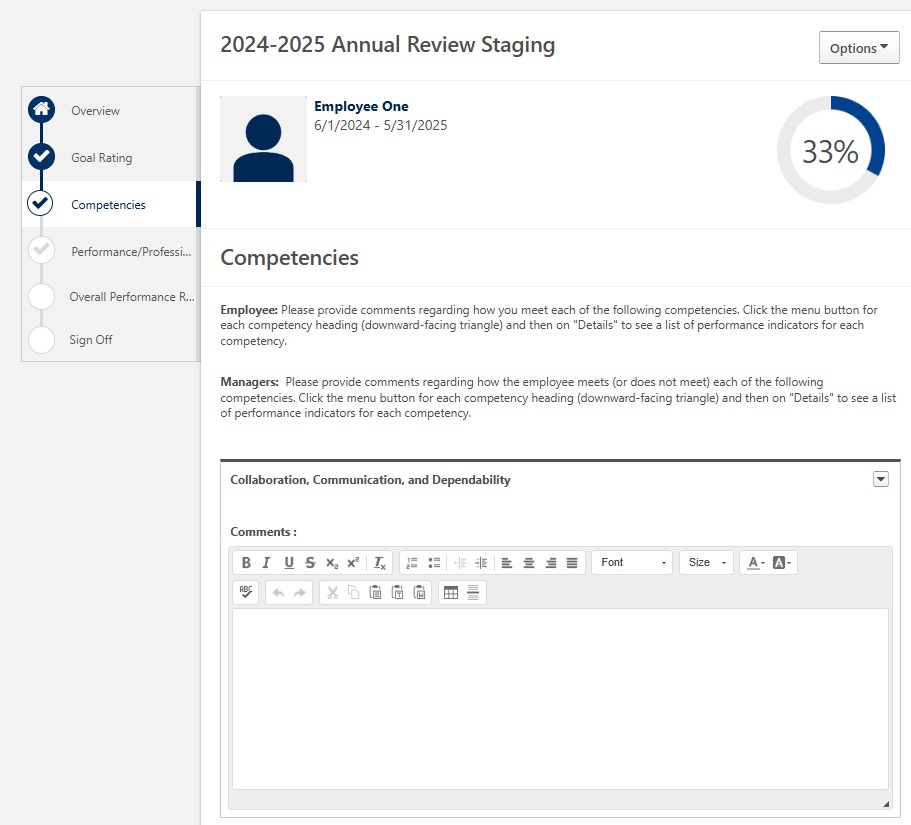
When you have reviewed all items and added any comments you wish to add, press Save and Continue at the bottom of the page.
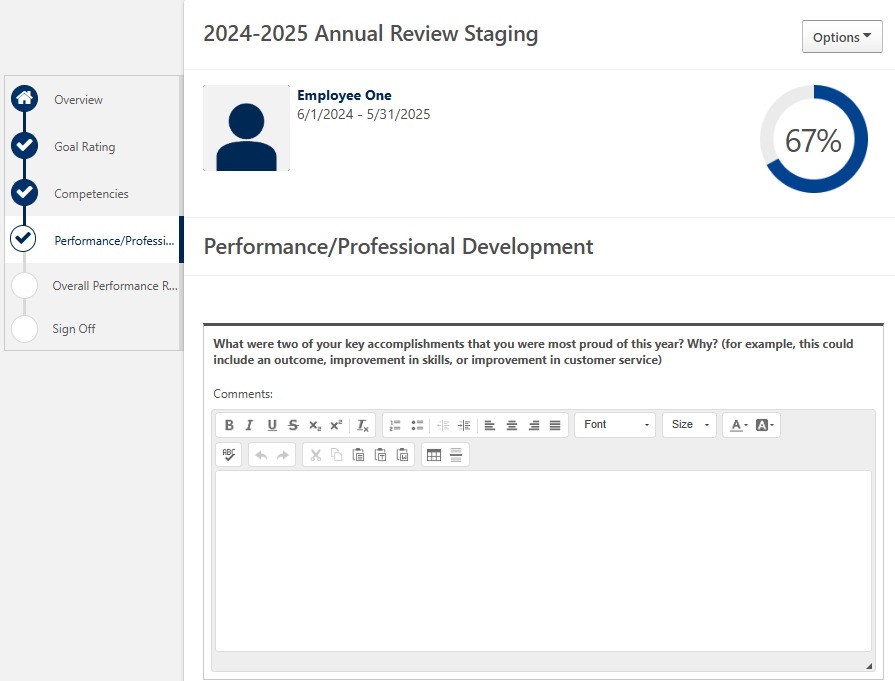
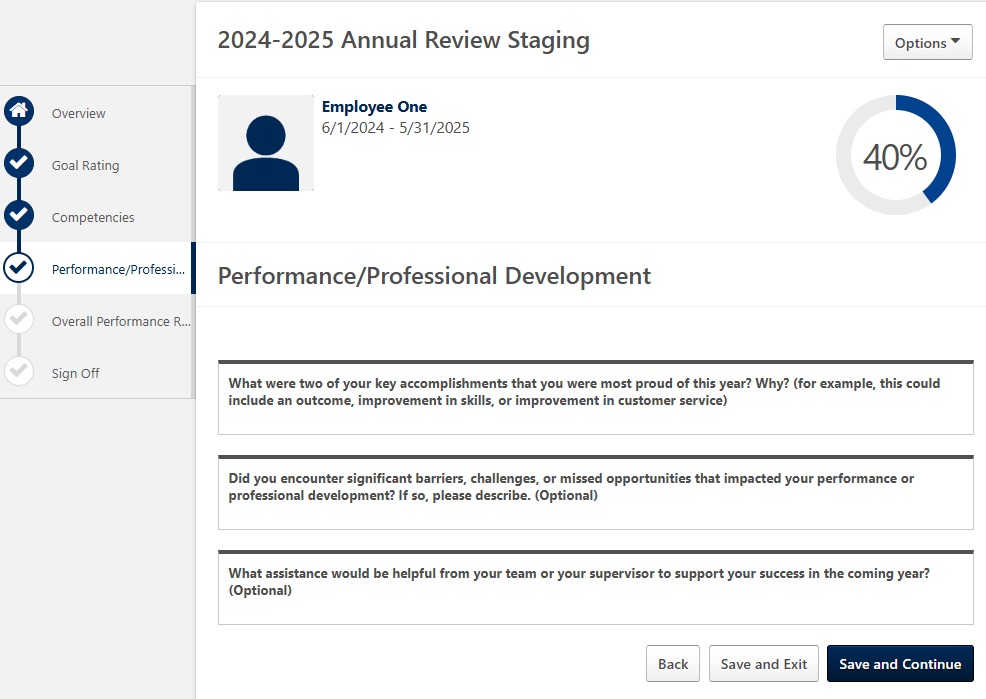
The next page will ask you to reflect on your Performance and Professional Development. Answer the questions on this page (the first question is the only one required).
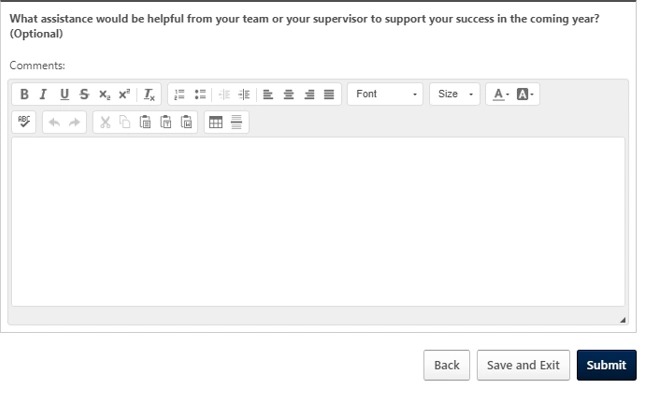
Press Submit button to send your self-review to your supervisor at this point.
- You can also click on “Save and Exit” if you are not finished and want to come back and make changes before submitting to your supervisor.
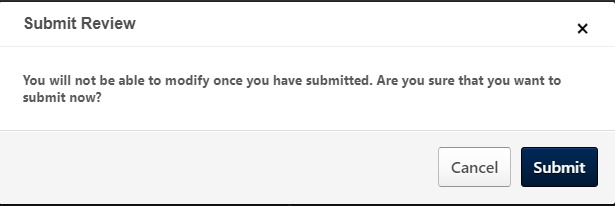
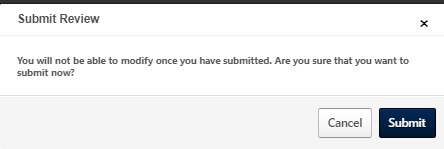
When you press Submit, you will get this pop-up box to confirm you would like to submit. No changes can be made after you press Submit.
The Summary page will indicate that you have completed Step 1 of the Annual Review Process. If you need to make any changes, you will need to contact your Supervisor to request that Step 1 be reopened for modifications.
- To print your review, select the Options drop down and choose Print Review. This will generate a PDF that you can save or print.
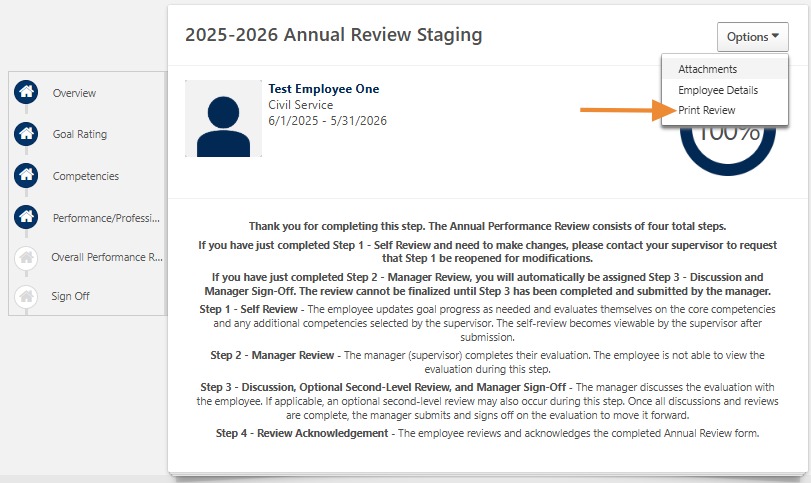
Your manager will receive an email that you have completed the self-review.
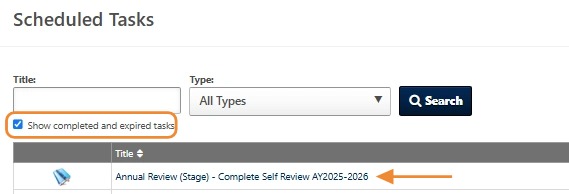
- You can still see your entry if desired.
- On the Scheduled Task page, click the Show completed and expired tasks, and then click on the appropriate review form.
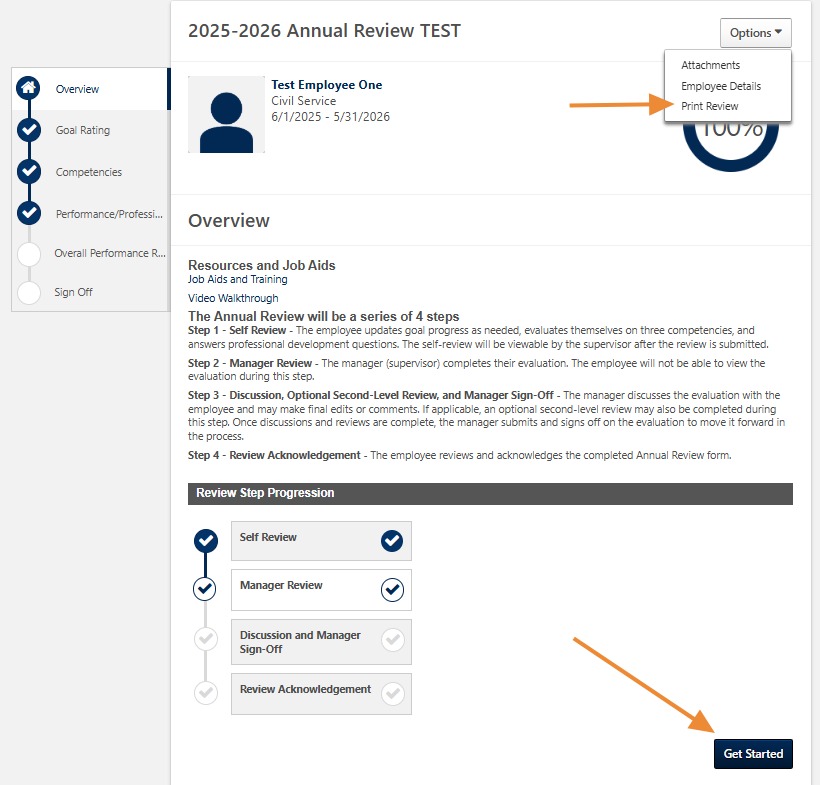
To print your review, select the Options drop down and choose Print Review. This will generate a PDF that you can save or print. You can also choose Get Started to walk through the pages you completed.
Acknowledge the Annual Review Form:
Once you have met with your manager regarding your Annual Review, your manager will electronically sign the form and send it to you to acknowledge. You will receive an email that the acknowledgement step has been assigned to you.
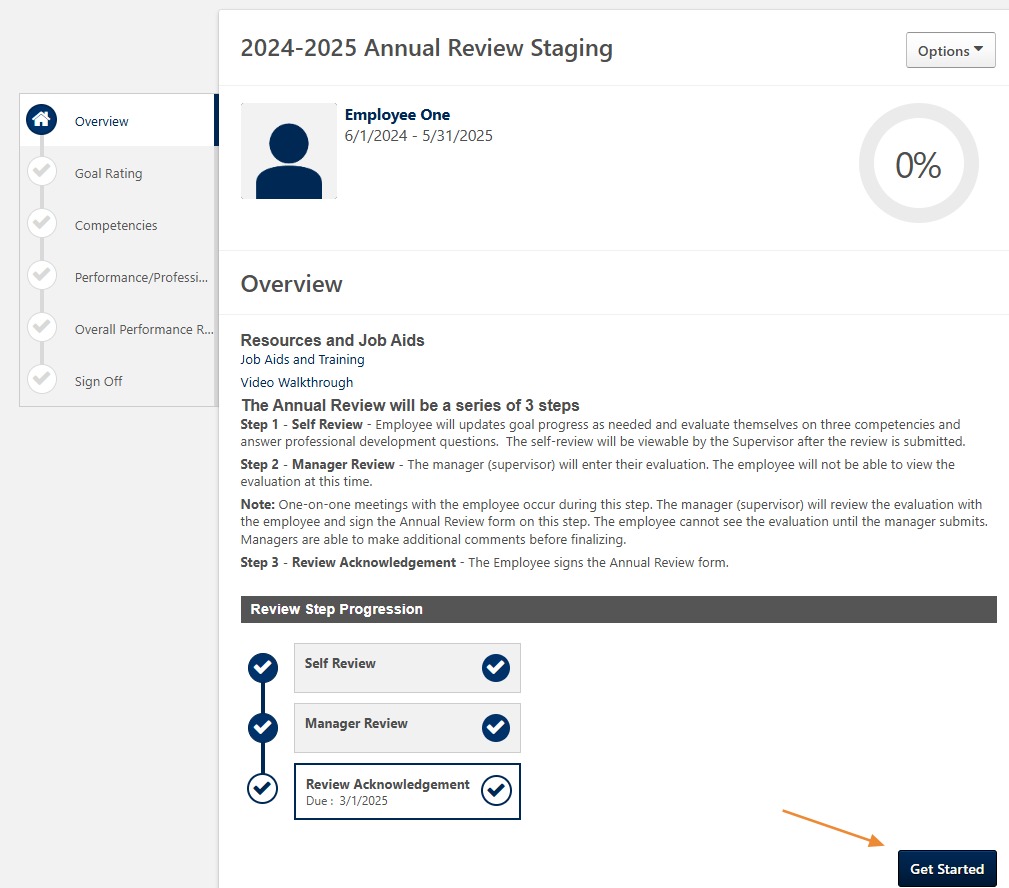
- Access your Annual Review under Scheduled Tasks as before.

Select Get Started to open the Annual Review.
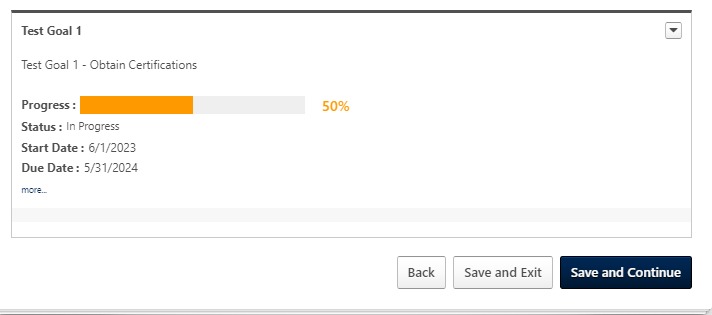
Review your goals page and press Save and Continue.
Review the manager comments for the Competencies. Press Save and Continue.
Review the manager comments for the Performance/Professional Development section. Press Save and Continue.
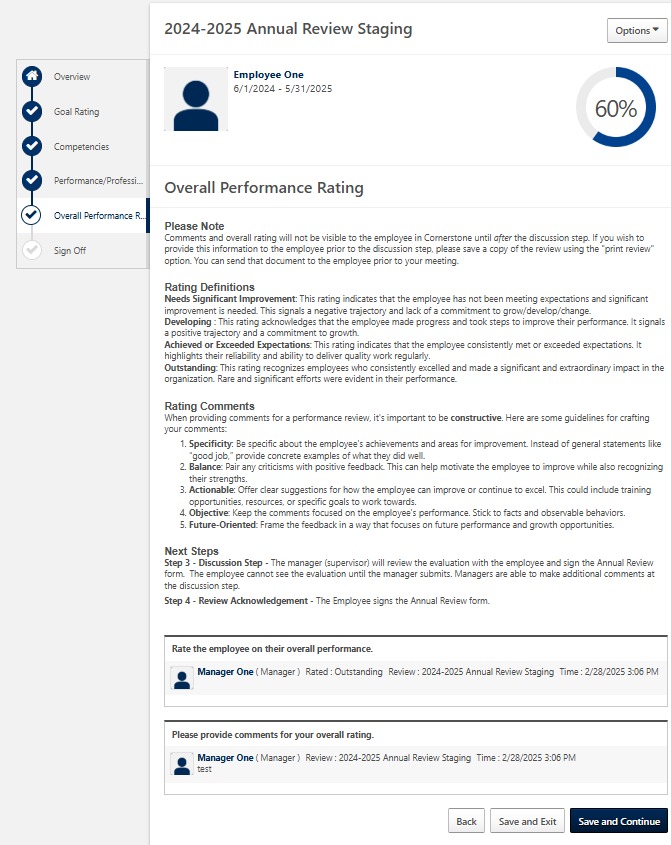
Review Overall Performance Rating. Press Save and Continue.
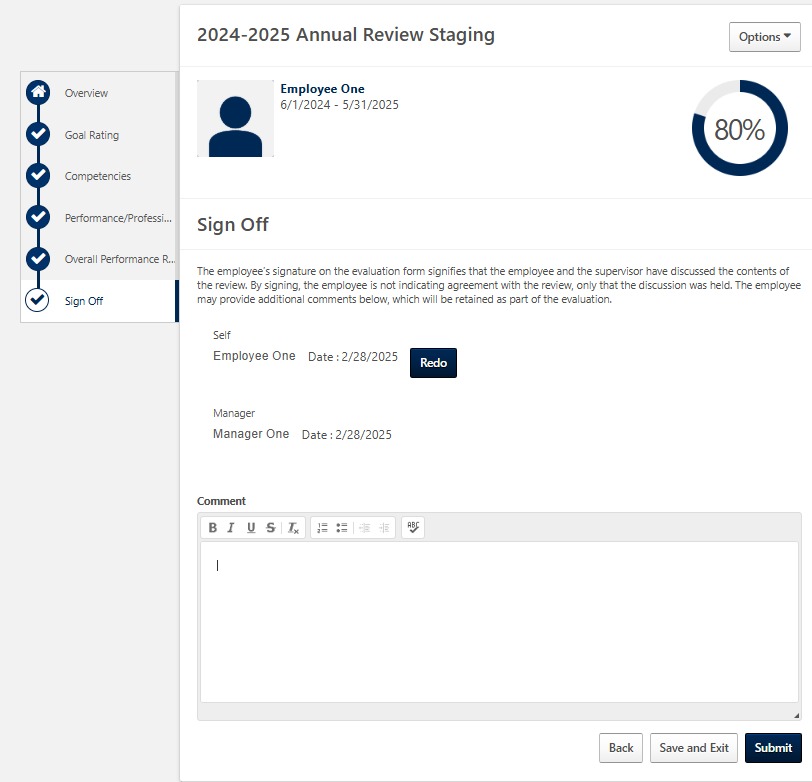
Read the information on the Sign Off page. Type in your name under Self and press Sign. Add any comments you would like. There is an option to Decline to sign if you wish.
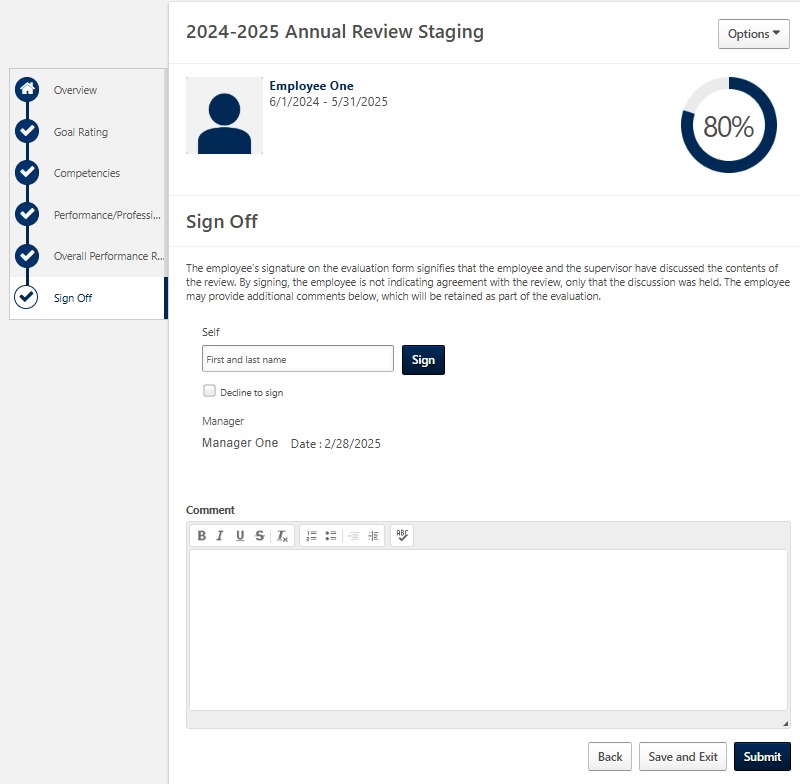
Press Submit when finished.
- Notice that there is a Redo button if you need to re-enter your name.
- There is also a Save and Exit button if you would like to save the changes you have made and submit this at a later time.
Once you have submitted, you will not be able to make any changes to your Annual Review. Press Submit to proceed.
After you have submitted it, you and your manager will receive an email that your Annual Review task is complete.
Access the Completed Annual Review:
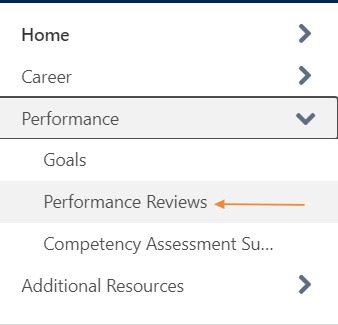
To review your completed performance review at a later date, you will go to the Performance Reviews page.
- From any page in Cornerstone, access the main menu in the upper right corner of the page.
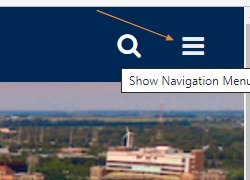
Select Performance, Performance Reviews.
On the Performance Review Summary page, click on the My Personal Reviews tab.

Click on the review to download the completed review to your workstation. You can then save and/or print the PDF document generated.
