
Tech Services Computer Labs, Approving and Releasing your Print Job
Introduction
When you print to a Technology Services printing system printer, your print job is held in a queue until released. The print job will be deleted if it is not released within an hour.
Where to release print jobs
You can release print jobs from the PaperCut User Portal from any computer connected to internet. Or, you can scan the QR code at the printer station (if available) to be taken directly to the Print Release page.
PaperCut User Portal
Visit https://papercut.ics.illinois.edu/ and log in with your campus netid and password. Once logged in, you will have several options from the left side bar. You can see a summary of your print jobs, print history, and Paid Credit balances. To release your file to the printer, select "Jobs Pending Release" from the left side menu bar.

You can release all jobs or select individual files to be released to the printer.

Print Release
Each printer area includes a QR code for Print Release. Scanning the QR code will take you to the Print Release webpage. Its screen will look like this:
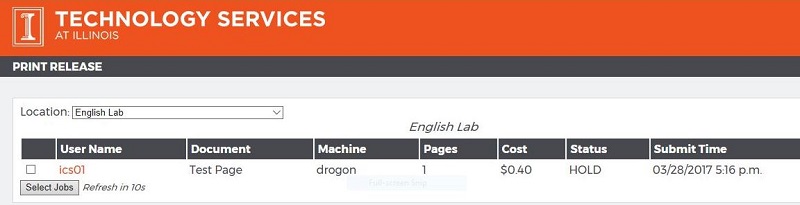
When you have located your print job, check the box next to it and then click "Select Jobs". The next screen will look like this:
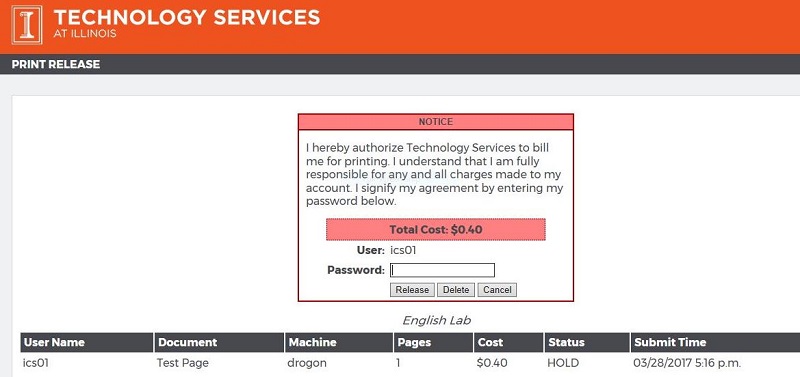
Enter your NetID password, and click "Release". Your document will be printed and your account billed.