

KB User's Guide - Users Tab - Updating a User's Default KB Group Space via the Users Tab
Important
These procedures require full administrative permissions within your space. You must have access to the Documents, Settings, and Users tabs before proceeding.
Update Default Group Space
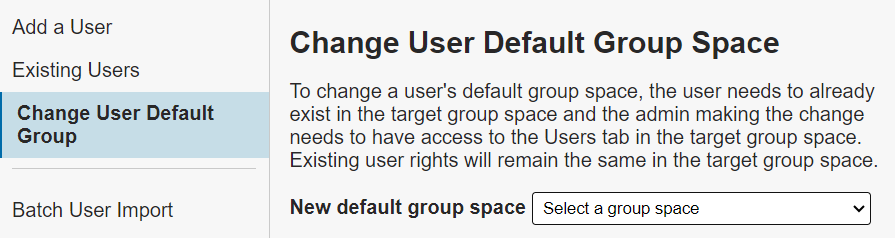
- In the KB Admin Tools, go to the Users tab and click on the Change User Default Group link on the left navigation bar.
- The Default Group Space screen will show a dropdown menu. The KB Group Admin will click on that dropdown and see a list of KB Group spaces. Select the appropriate Group Space.
- Once the desired Group Space is selected, names will appear with a check box in the Select? column at the far right. Click that check box. The image below shows the select box circled in red.
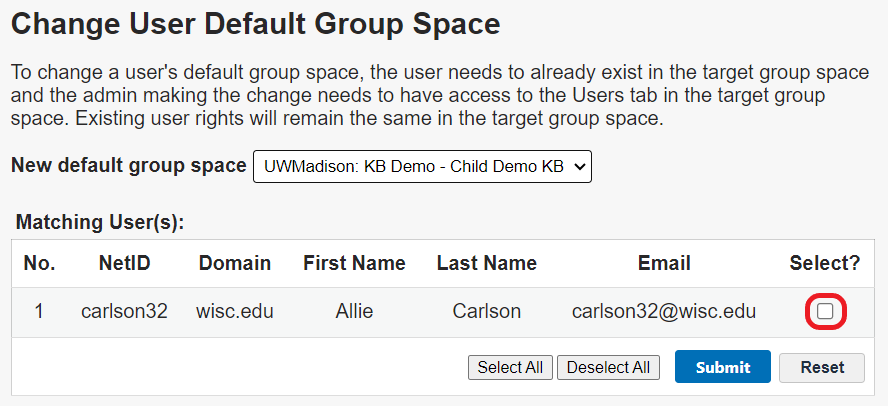
- Click on the Submit button to save your work.